HELP
How to Configure CapEx/OpEx Classification
A step-by-step walkthrough, with real screenshots, of setting up the Cost Classification semantic rule.
Before you start
You'll need to be an Admin or Gestor on your moasy.tech tenant — both roles can view, edit and save these rules, unlike some other settings (like adding an integration) that are Admin-only.
Get there one of two ways: go to Mapping Rules in the main nav to set an organization-wide default, or open a specific team's page, click the gear/settings icon, and choose Rules to set (or override) it for that team only. Both paths land on the same screen — the only difference is which scope you're editing. Team rules win over organization rules, which win over the system default.
Steps
1. Open Semantic Rules
At either scope, the page opens on the Semantic Rules tab. If nothing has been configured yet, you'll see "0 of 6" — every rule family, including Cost Classification, is falling back to the system default. A banner at the top tells you whether this scope is inheriting from the organization or has already diverged from it.
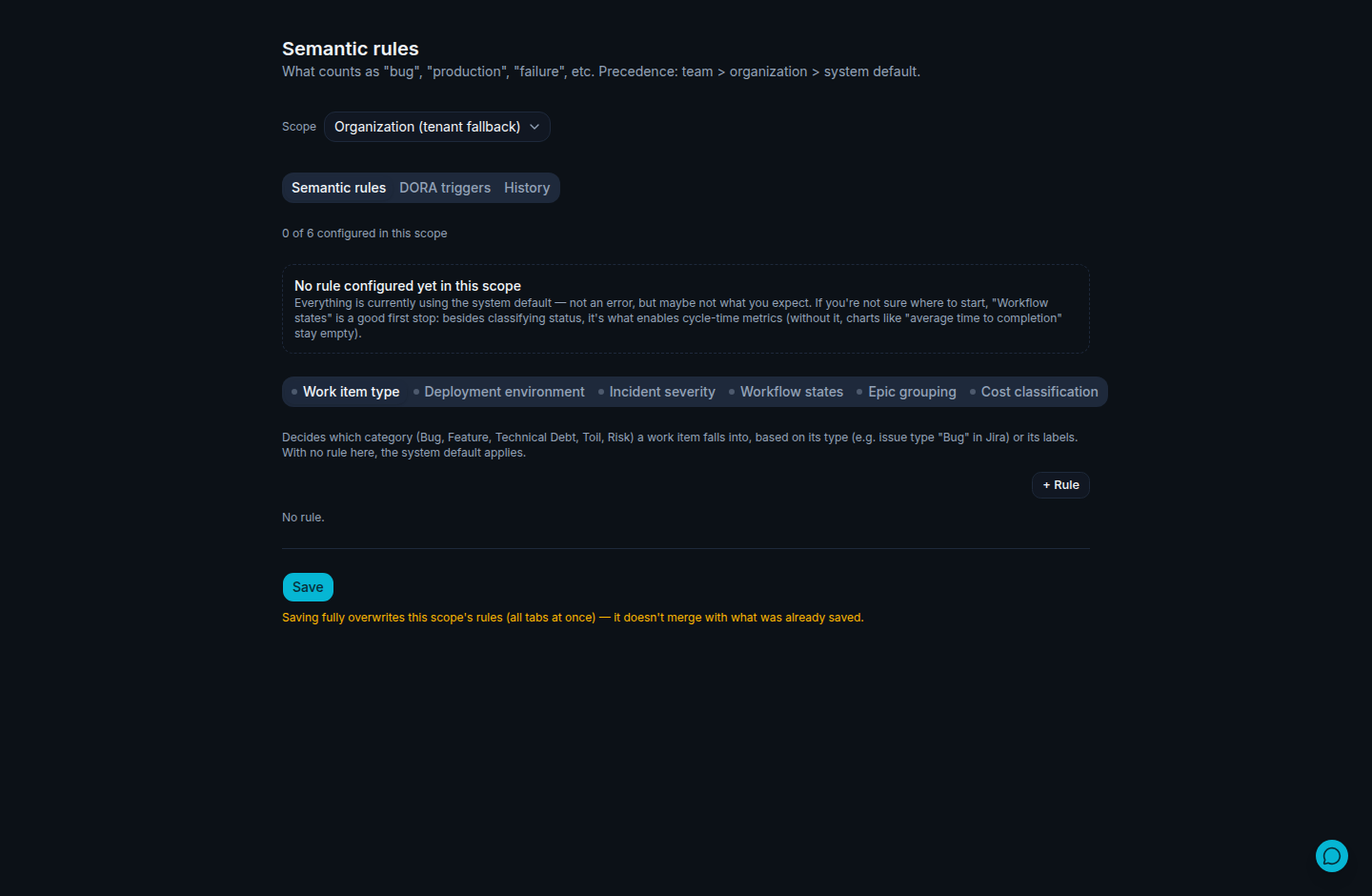
Illustrative data, for demonstration purposes only.
2. Switch to the Cost Classification sub-tab
It sits alongside the 5 sub-tabs you may already use for Bug/Feature/Technical Debt/Toil/Risk classification, deployment environment, incident severity, workflow states and epic grouping — same page, same scope. Every category starts Unclassified until you set it.
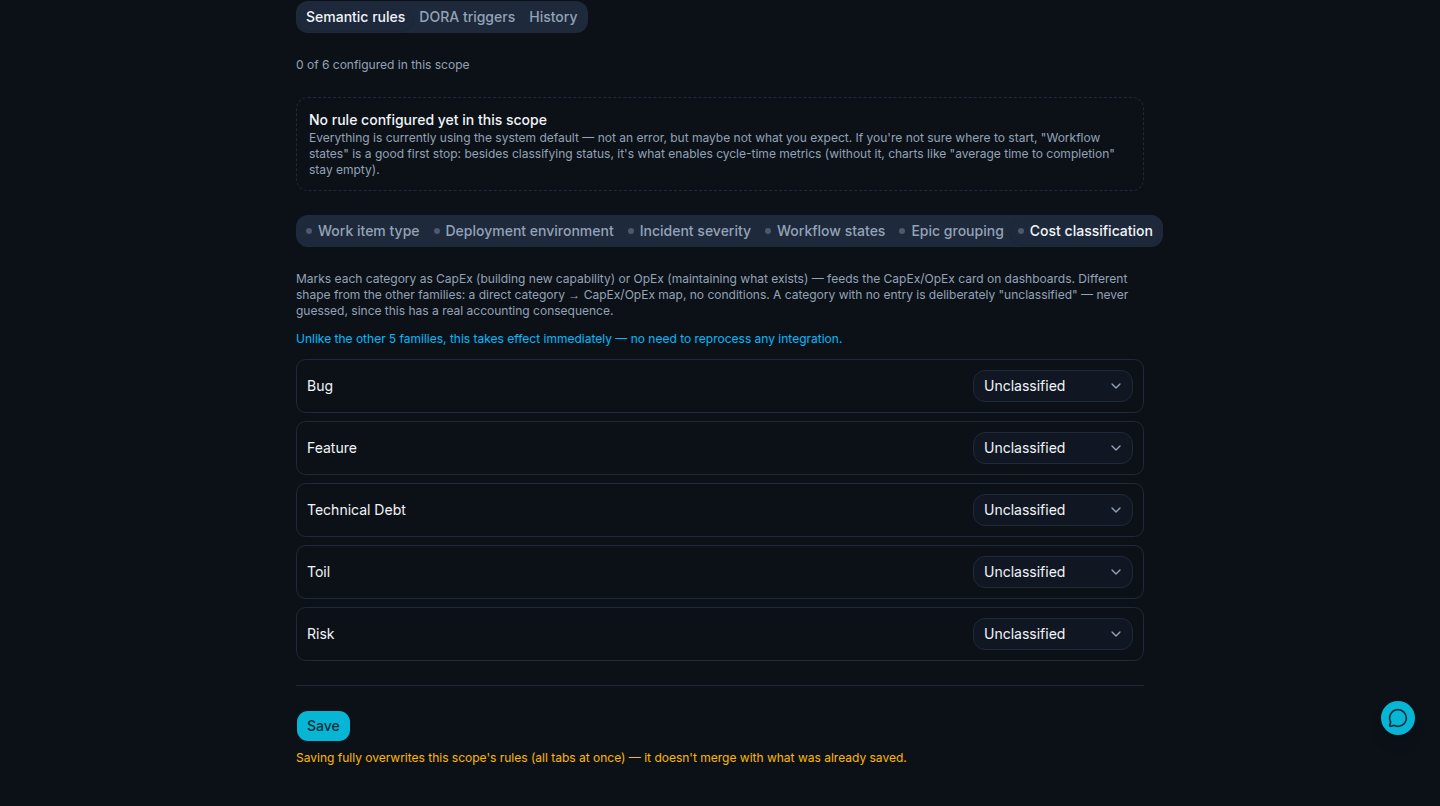
Illustrative data, for demonstration purposes only.
3. Map each category to CapEx or OpEx
Pick CapEx or OpEx for each of the 5 categories — no conditions to write, just a direct map. It's fine to leave a category blank: it stays deliberately Unclassified rather than getting a guessed default, since this has a real accounting consequence. A common starting point is Feature → CapEx, everything else → OpEx, but the right split depends on how your finance team treats each category.
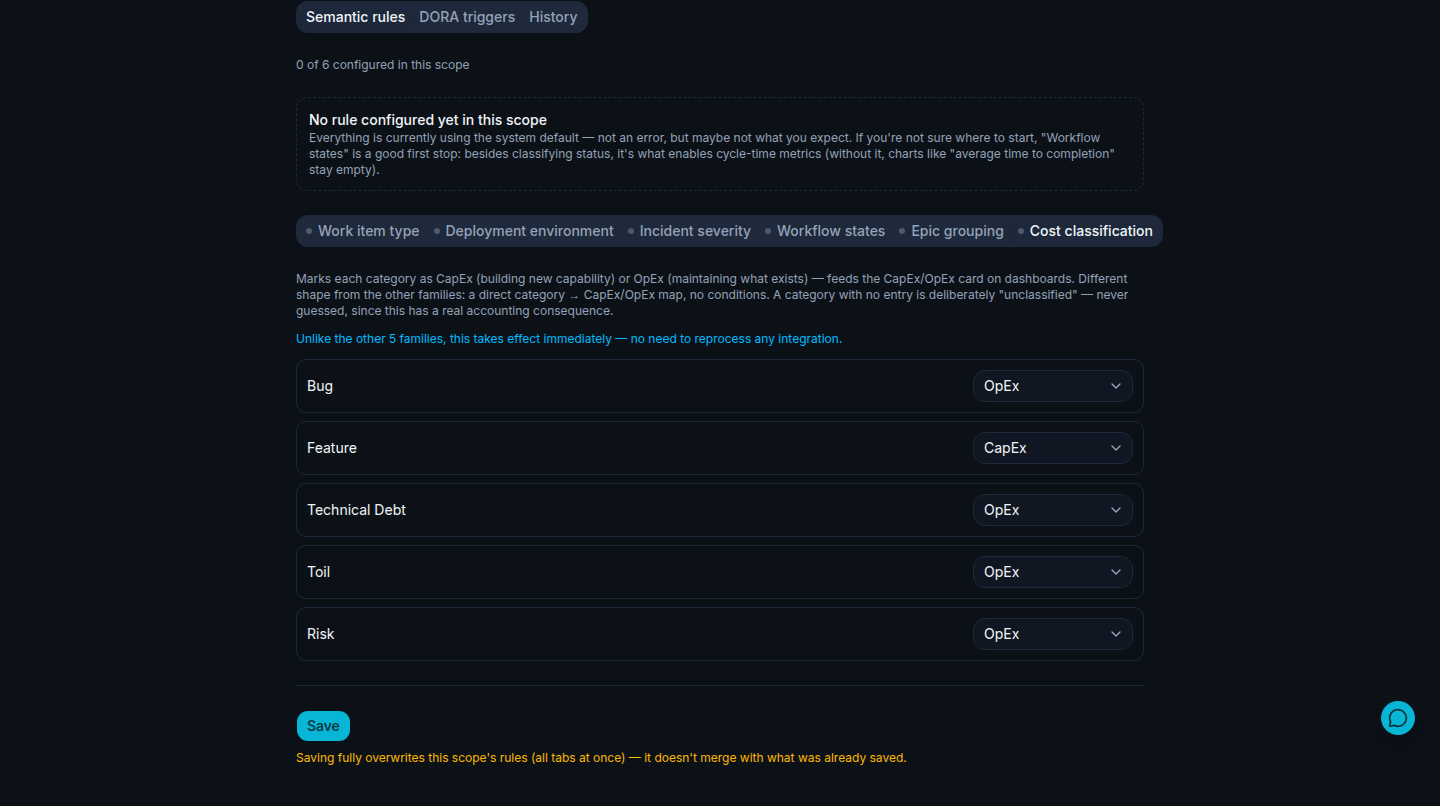
Illustrative data, for demonstration purposes only.
4. Save
Unlike the other 5 rule families, Cost Classification doesn't need a reprocessing step — the dashboard's CapEx/OpEx card updates immediately, using the new rule on data that's already synced. No re-sync, no waiting for the next integration run.
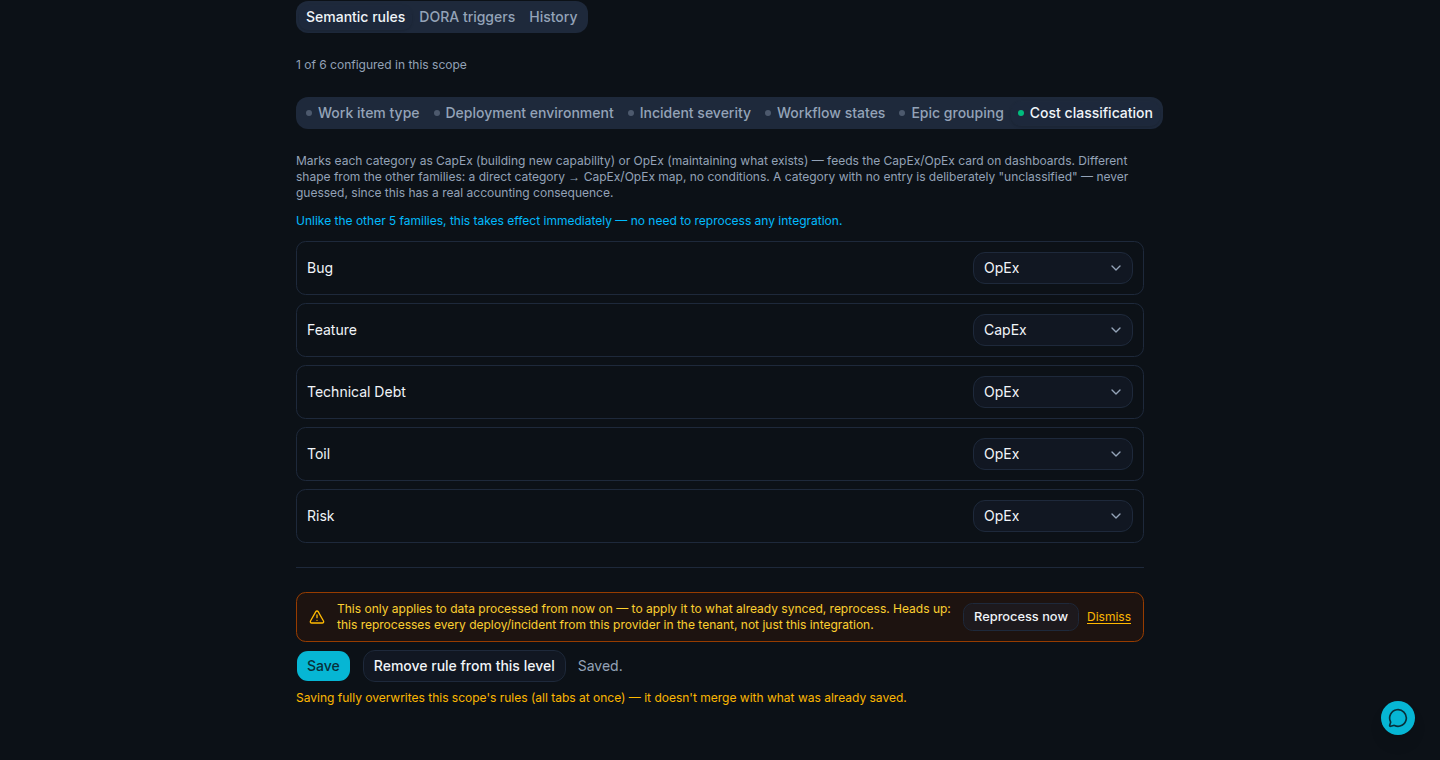
Illustrative data, for demonstration purposes only.
Related
See the full feature overview on the Cost Classification feature page, or read what it would cost to do this same classification with an LLM instead on the AI cost of ticket classification.
Questions about this setup
Does this apply retroactively to work already synced?
Yes — because Cost Classification is a mapping applied at read time, not a one-time tag written to each item, saving a new rule changes how all matching items are classified immediately, past and future, with no reprocessing step needed.
Should I configure this at the organization level or per team?
Start at the organization level for a company-wide default — most teams treat CapEx/OpEx the same way. Override at the team level only if a specific team's finance treatment genuinely differs; team rules always win over the organization default.
What happens if I leave a category unmapped?
It stays "Unclassified" on the dashboard rather than silently defaulting to CapEx or OpEx — this is intentional, since guessing on an accounting classification is worse than leaving it visibly unset.
Try it on your own data
Get started free